Starting with macOS 27.3, Mac users can now choose to grant an app access to only specific protected folders or applications instead of allowing it to bypass all system protections. This shift addresses a significant privacy concern: many apps request 'Full Disk Access' or 'System & App Protection Override' to function, but granting these permissions allows an app to read, change, delete, and export every file on the device, including private messages, emails, and photos.
Granular Control vs. Blanket Access
Previously, apps requiring deep system integration—such as backup tools, disk cleaners, and file indexers—often required 'Full Disk Access' to operate. When granted, this permission allows an app to bypass system protections to access all files on a Mac, including data from other user accounts.
The new update introduces a middle ground. When a user turns on access for an app in Privacy & Security settings, the Mac may prompt the user to choose specific protected folders or apps. This allows the software to perform its necessary tasks on a subset of data while keeping the rest of the system's files protected.

This image illustrates the new dialog box that appears when a user is configuring permissions for an application in System Settings.
“This puts you in control of what data is accessible to the app.”
— If an app asks for Full Disk Access or System & App Protection Override on your Mac - Apple Support
Managing System & App Protection Overrides
For apps requiring 'System & App Protection Override,' the new functionality allows users to specify which apps the requesting software can control. Users can further refine this by choosing whether the app must 'Ask First' or can operate 'At Any Time' for each specific app in the list.
If a user chooses to bypass system protections entirely, the app can see every window and application, including those running in the background, and capture every keystroke. The granular option ensures that even if an app is granted override capabilities, its reach is limited to the specific targets the user approves.
User Workflow and Security Trade-offs
To manage these permissions, users navigate to System Settings, then Privacy & Security. When adding an app to the Full Disk Access or System & App Protection Override list, a dialog box appears with 'Choose Folder' or 'Choose Apps' buttons. Users are encouraged to check the app's setup instructions to identify exactly which folders or apps are required for the software to function correctly.
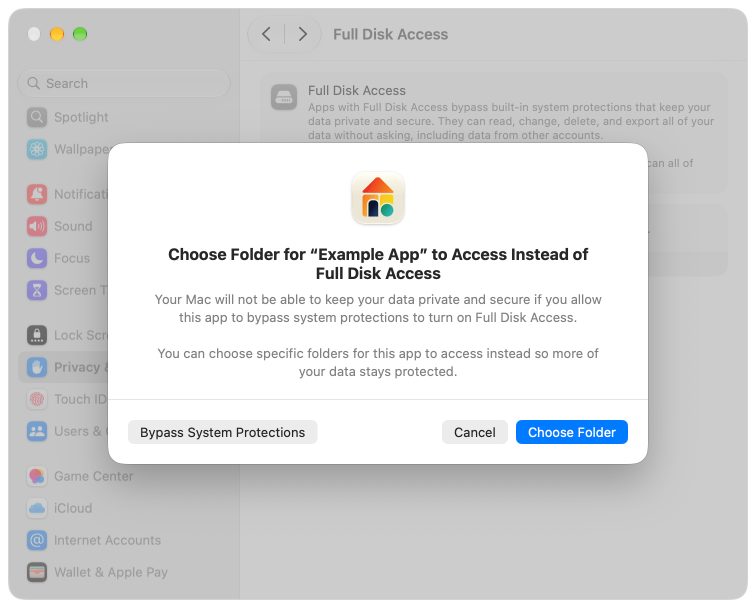
This screenshot provides a visual example of the specific prompt users see when managing app permissions.
A significant trade-off remains: some apps may not work as expected if permissions are too restrictive. Apple advises that users should only click 'Bypass System Protections' if they are certain the app is from a trustworthy source and requires that level of access to perform its primary function.
What Hacker News readers are saying
- Experience: One commenter shared their experience of having dozens of applications request full disk access despite only needing it for a small handful of tools. comment ↗
- Skeptical: Another user expressed skepticism, suggesting that the change might be a kneejerk reaction and that certain types of apps are not what the full disk access permission was originally intended for. comment ↗
- Alternative: A commenter suggested that it would be more useful to allow users to exclude specific sensitive folders, such as SSH keys, from being accessible by certain applications. comment ↗
Summarized opinions from the Hacker News thread, not verified facts. Read the full discussion ↗