Legacy computing enthusiasts can now access modern optical media on systems as old as MS-DOS 3.10 or Windows 1.0x using the Winudf driver. This project bridges a significant compatibility gap by providing a functional interface for UDF file systems (versions 1.02 to 2.60) on hardware and software environments that were never designed to handle them.
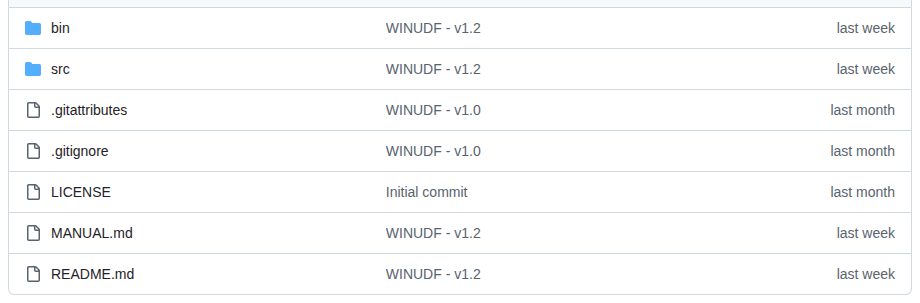
This image demonstrates the practical application of the driver by showing how files and folders are accessed on older systems.
Architecture for Legacy Environments
Winudf is structured as a specialized driver package designed to provide drive letters and file system access to older systems. It utilizes a dual-component architecture to accommodate the different ways legacy OSs handle hardware and file systems.
For MS-DOS and Windows 1.x through 3.11, the project provides WINUDF.EXE, which acts as a regular DOS program that can be loaded high (LH). For Windows 95, 98, and ME, it provides WINUDF.VXD, an Installable File System (IFS) driver that supports long file names.
“WINUDF reads and writes UDF (versions 1.02 to 2.60), the file system of DVDs, Blu-ray discs, packet-written CDs and UDF-formatted USB sticks and disks:”
— GitHub - ages2001/WINUDF: UDF IFS (Installable File System driver) for DOS, Windows 1.0x/2.xx/3.xx/95/98/ME
Technical Capabilities and Version 1.2 Updates
The driver supports a wide range of UDF versions, including the metadata bitmaps required for Windows 10 UDF 2.60 discs. It handles complex file operations such as seeking to negative positions and managing files larger than 4 GB by keeping the high dword of a file position in the system file table.
Recent updates in version 1.2 addressed critical stability issues, such as a buffer locking mechanism to prevent crashes when programs page in data from the same disc as the driver's cache. It also improved DOS buffer normalization to ensure 32 KB transfers do not overrun 64 KB segments.
Installation and System Integration
Integrating Winudf into a legacy system requires modifying core configuration files like AUTOEXEC.BAT, CONFIG.SYS, or SYSTEM.INI depending on the specific OS version. For example, on Windows 9x, the driver is placed in the SYSTEM folder and registered under the [386Enh] section.
While the driver enables modern media access, it remains a manual configuration process. Users must ensure the correct binaries are placed in the appropriate directories, as the installer expects the full bin tree to remain together for proper operation.