1. Install and open files
- Install Markda from the Visual Studio Marketplace, or search for “Markda” in the Extensions view. You can also run
ext install tetsuji16.markdafrom Quick Open (Ctrl+P). - Open a Markdown file. Markda handles
.md,.markdown,.mdown,.mkd,.mkdn,.mdwnand.txt. - If the file opens in VS Code's text editor, run markda: Open with markda from the Command Palette, or choose Reopen Editor With… → Markda from the editor tab's menu.
Make Markda the default editor
Run markda: Configure File Associations and pick which extensions should open in Markda, for your user profile or just this workspace. The choice is stored in VS Code's workbench.editorAssociations setting, so you can also edit it there:
"workbench.editorAssociations": {
  "*.md": "markda.editor"
}
Go back to the text editor
Click the pencil icon in the editor title bar (Reopen with Another Editor) to switch the current file to VS Code's built-in editor. Both editors work on the same file, so you can switch at any time.
Requirements. VS Code Desktop 1.100 or later on Windows, macOS or Linux, including remote desktop extension hosts. Markda is not available in browser-based VS Code such as vscode.dev.
2. The editor at a glance
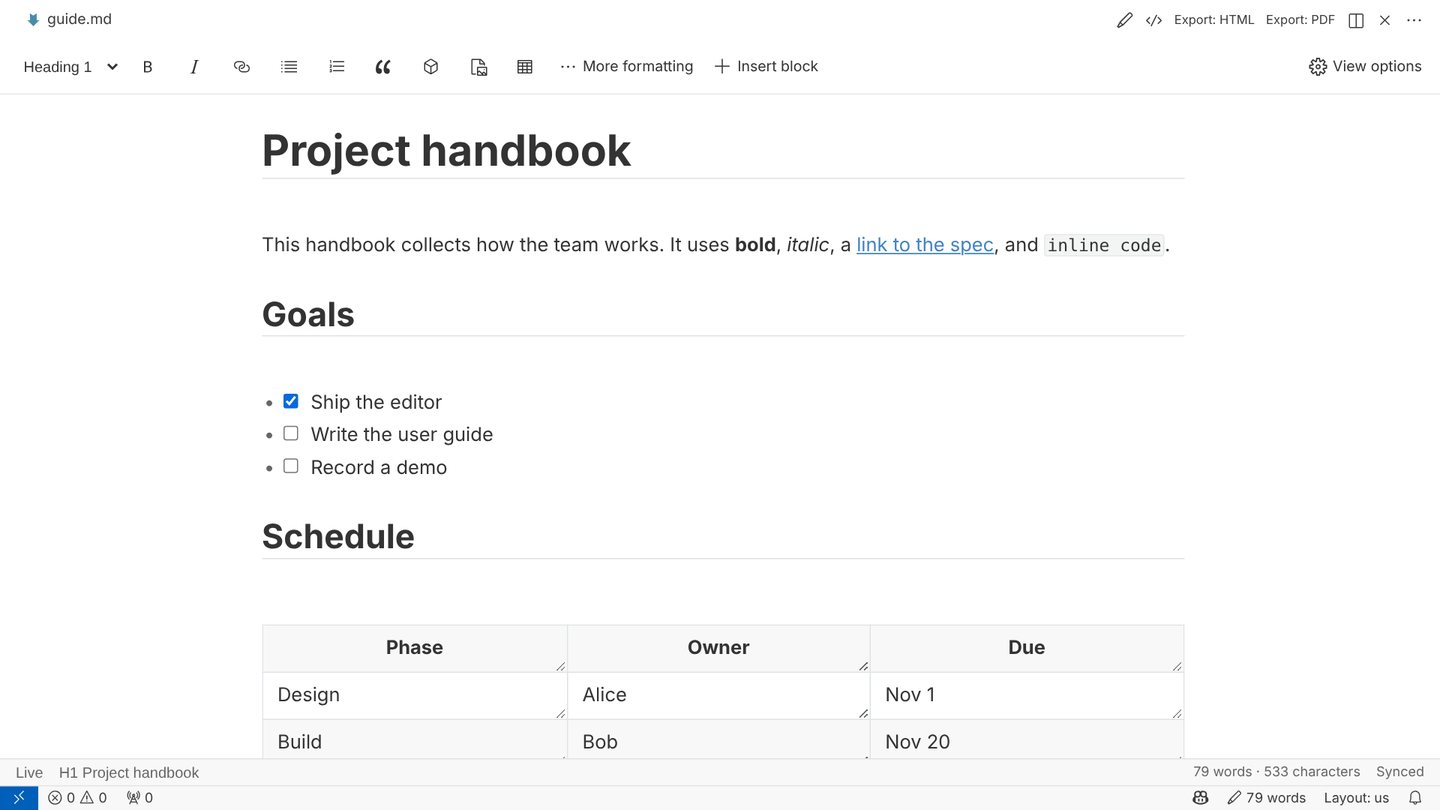
Title bar actions
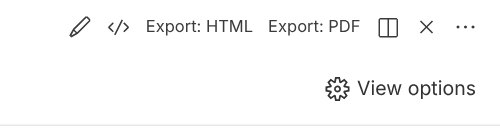
- Pencil — reopen the file in another editor (VS Code's text editor).
</>— switch between live view and source view.- Export: HTML / Export: PDF — export the document. More export options are in the … menu and the Command Palette.
- View options (gear, at the right of the toolbar) — theme, focus and typewriter modes, and other display options.
Toolbar

From left to right: the paragraph style picker (Paragraph, Heading 1–6), Bold, Italic, Link, Bulleted list, Numbered list, Quote, Code block, Image, Table, More formatting (strikethrough, inline code, task list, clear formatting and more) and Insert block. The picker always shows the style of the line the cursor is on.
Status line

The line under the document shows the current mode (Live or Source), the section you are in, word and character counts, and the save state (Synced when the document matches VS Code's copy). Click the counts to see lines and reading time. With text selected, the counts reflect the selection. VS Code's status bar shows a word count as well; click it to run Show Document Statistics.
3. Writing in live view
Type Markdown as usual. As soon as a line is complete it is shown formatted: # becomes a heading, **text** becomes bold, - [ ] becomes a checkbox. The Markdown markers stay visible only on the line or inline element where your cursor is, so you can always see and edit the exact syntax you are touching.
| Type | You get |
|---|---|
# Title … ###### Title | Headings 1–6 |
**bold**, *italic*, ~~strike~~ | Bold, italic, strikethrough |
`code` | Inline code |
[text](url), <https://…>, bare URLs | Links (reference links [text][id] work too) |
- item, 1. item | Bulleted and numbered lists; Enter continues the list |
- [ ] task, - [x] done | Task list; click the box to toggle it |
> quote | Block quote |
> [!NOTE] (also TIP, IMPORTANT, WARNING, CAUTION) | Callout box |
--- | Horizontal rule |
```lang … ``` | Code block with syntax highlighting |
$E = mc^2$, $$ … $$ | Inline and display math |
[^1] and [^1]: note | Footnotes |
:smile: | Emoji shortcodes |
[toc] | Table of contents |
--- at the top with key: value lines | YAML front matter, shown as an editable form |
- Shift+Enter inserts a Markdown hard line break inside a paragraph.
- Markda pairs Markdown delimiters such as
**and`as you type. Turn this off withmarkda.editor.autoPairMarkdown. - Pasting from a web page or a word processor converts headings, lists, links, images, tables and code to Markdown. Use Paste as Plain Text to paste text only.
- Copy as Markdown copies the selection as its Markdown source.
- Inline HTML is shown rendered when
markda.markdown.htmlis on; HTML blocks are read-only unless you enablemarkda.security.allowUnsafeHtml(see Security).
Nothing else in the file changes. Markda edits only the text you touch. Untouched lines keep their exact formatting, so Git diffs show only your real changes.
4. Toolbar, menus and quick insert
Selection toolbar
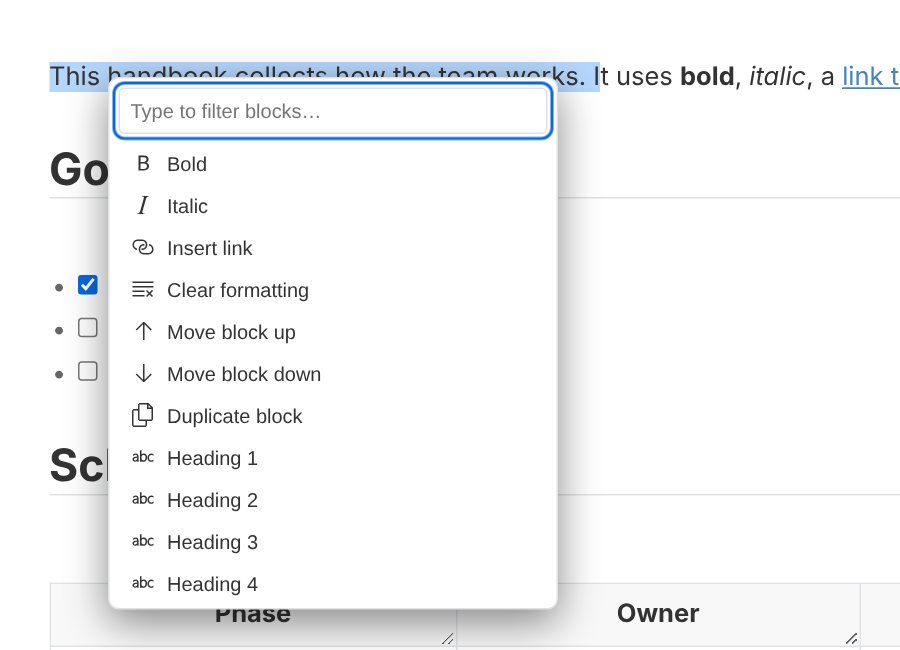
Select text and a small toolbar appears above it with bold, italic, strikethrough, inline code, link and clear formatting.

Quick insert with /
On an empty line, type / to open the quick insert list. Keep typing to filter it, then press Enter or click an item.
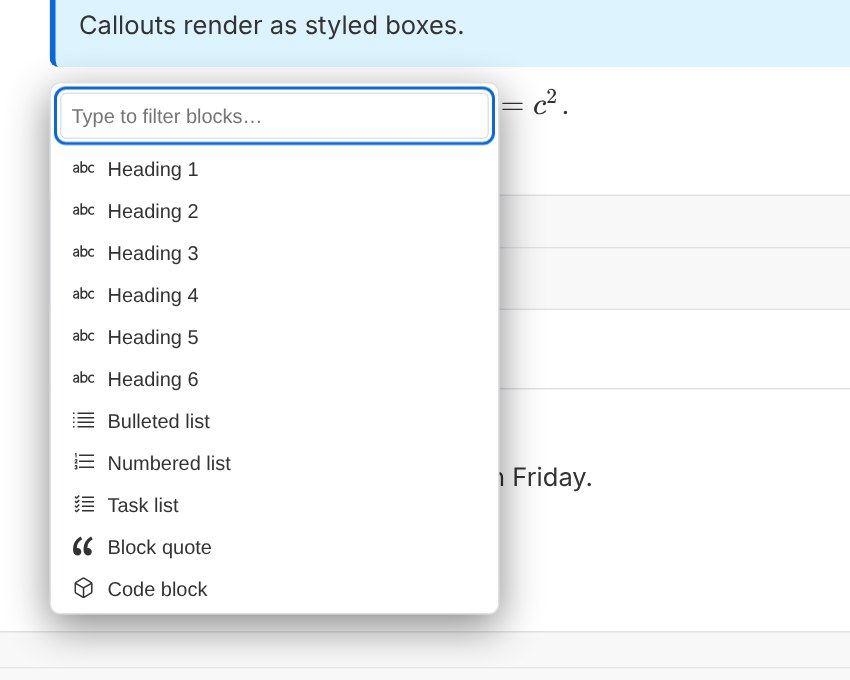
Available items: Heading 1–6, bulleted list, numbered list, task list, block quote, code block, table, images, math block, horizontal rule, table of contents, front matter, callout and footnote.
Right-click menu
Right-click in the document for the same list plus actions for the current text and block: bold, italic, insert link, clear formatting, move block up / down and duplicate block.
5. Links
- Click Link in the toolbar (or press Ctrl+K with Markda shortcuts on) to open the link dialog. If the clipboard holds a URL it is filled in for you. You can also set the link title, or pick a heading in this or another document as the target.
- To open a link, hold Ctrl (Cmd on macOS) and click it. Links to other Markdown files and headings open inside VS Code; web links follow your security settings.
- Click a link without the modifier key to edit its text and Markdown.
6. Tables
Insert a table from the toolbar, from quick insert (/ → Table) or with Insert Table, then choose the number of rows and columns. Click any cell to edit it directly; the table toolbar appears at the top.
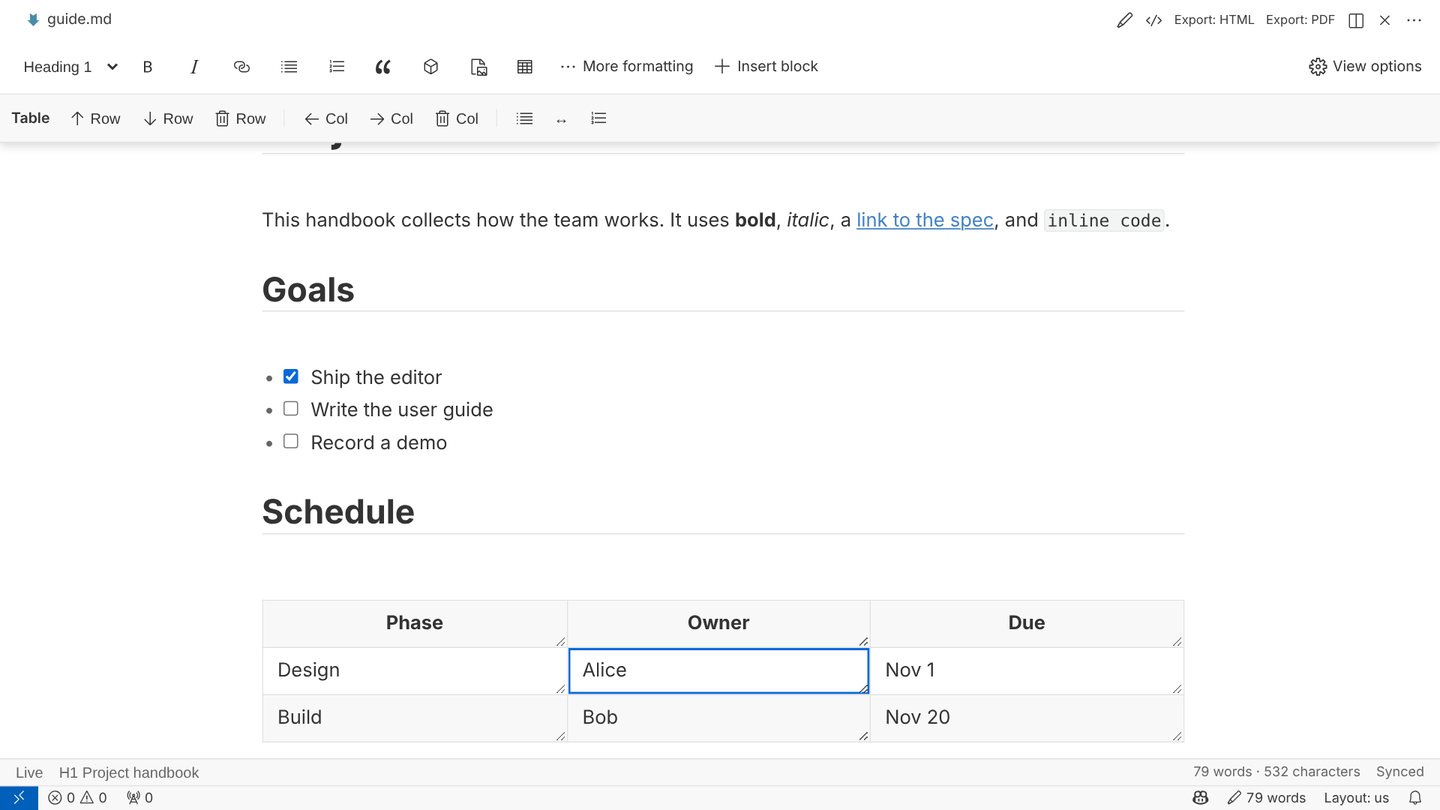
- Tab / Shift+Tab move to the next or previous cell.
- Drag a row or a column header to reorder it.
- Drag the handle at a cell's corner to change the column width.
- Right-click a column header to cycle its alignment (left, center, right).
- Bold, italic and other inline formatting work inside cells.
- Very large tables (more than
markda.editor.liveTableMaxCellscells, 600 by default) open in a lightweight source editor to stay fast.
7. Code blocks
Insert a code block from the toolbar or with ``` followed by a language name. The code is highlighted and editable in place; you never need source view to change it. The block header shows the language (click it to choose another) and a copy button. Undo and redo inside a code block share the document's history.
8. Math and diagrams
Math (KaTeX)
Write inline math between single dollar signs and display math between $$ lines. Formulas render as soon as you close them, entirely on your computer.
The area is $A = \pi r^2$.

$$
\int_0^1 x^2\,dx = \frac{1}{3} \label{eq:area}
$$

As shown in \eqref{eq:area}, …
Display equations with a \label{…} are numbered in document order, and \ref{…} or \eqref{…} show that number — without rewriting your Markdown. Click a rendered formula to edit its source.
Diagrams (Mermaid)
```mermaid
flowchart LR
  Write --> Review --> Publish
```
Mermaid code blocks are drawn as diagrams. Click a diagram to open its source, edit it, and click elsewhere to redraw. Math and diagram rendering can be turned off with markda.markdown.math and markda.markdown.diagrams.
9. Images
- Insert Image (toolbar, quick insert or command) lets you choose one or more image files.
- Paste an image from the clipboard, or drag and drop image files onto the document.
- New images are saved in the folder set by
markda.image.folder— by default${currentFileNameWithoutExt}.assetsnext to your document — with names that never overwrite existing files, and linked with a relative path. - Click an image to edit its alt text and path, or resize it.
- Audit Document Images lists broken image references and image files in the assets folder that the document no longer uses.
10. Source view and undo
Click </> in the title bar (or press Ctrl+/ with Markda shortcuts on) to see and edit the whole file as plain Markdown. Click it again to return to live view.
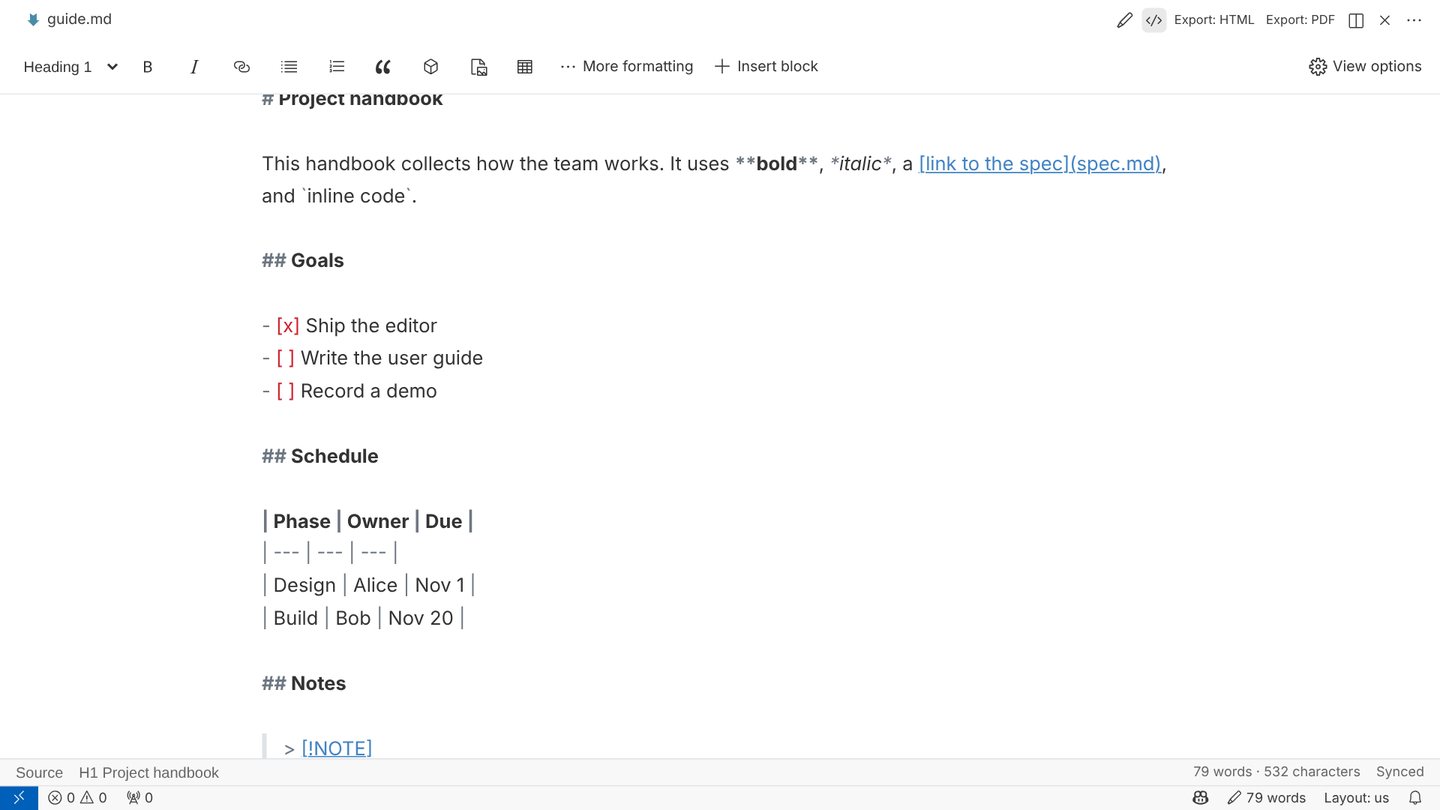
- Ctrl+Z undoes and Ctrl+Y or Ctrl+Shift+Z redoes (Cmd on macOS). Text, table cells and code blocks share one history.
- If the file is changed by another editor, a split view or another extension, Markda updates to the new text.
- Open the same file in a split editor (or in VS Code's text editor next to Markda) and both stay in sync.
11. Outline, sections and files
Run Show Outline or Show Files to open Markda's side views.
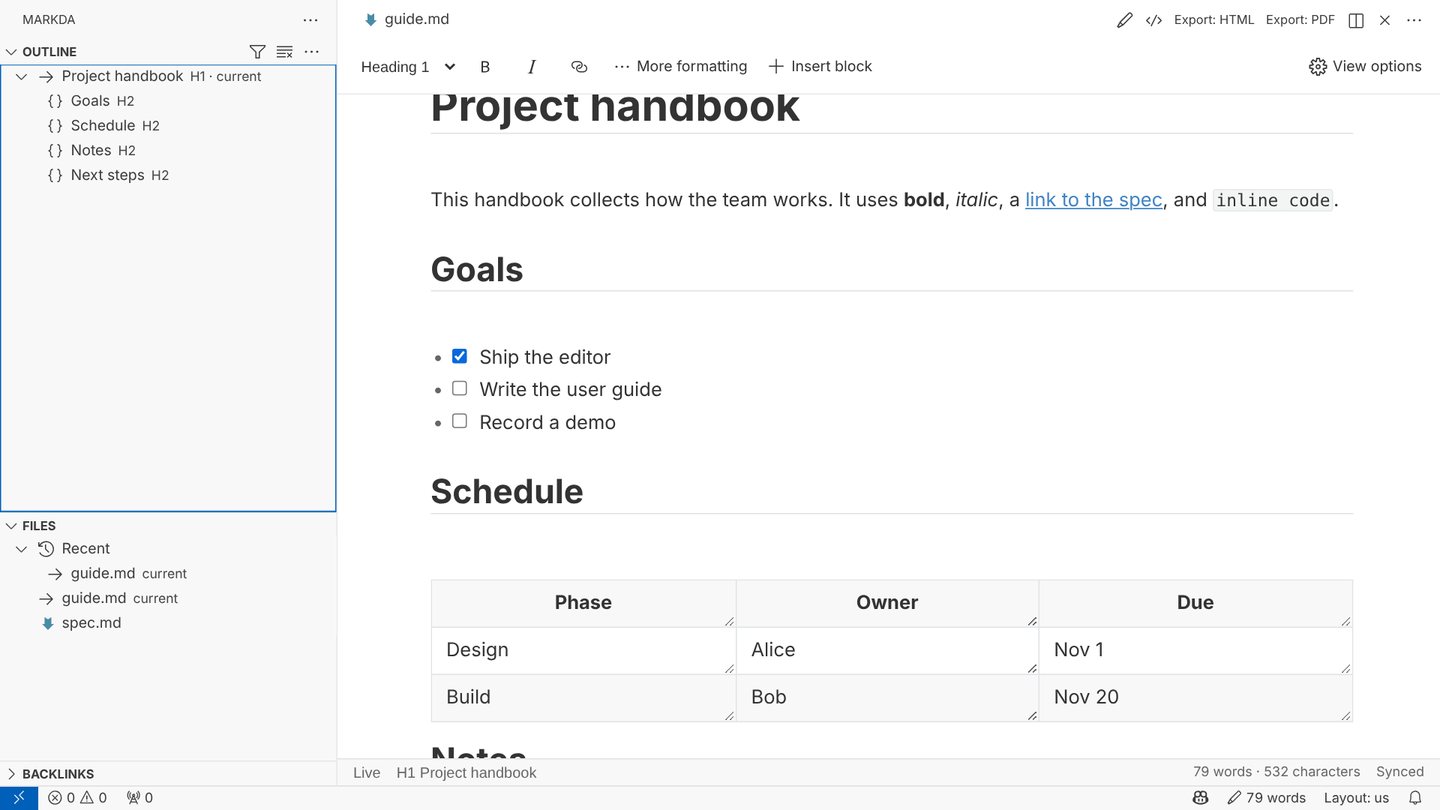
Outline
- Shows the heading hierarchy and marks the section you are in. Click a heading to jump to it.
- Filter Outline narrows the list; Clear Outline Filter resets it.
- From the Outline view or the Command Palette: Rename Heading, Promote Heading / Demote Heading, Move Section Up / Move Section Down (moves the heading with all of its content).
Folding sections
Hover beside a heading to show its fold marker and click it to collapse the section. Fold All Sections, Expand All Sections and Focus Current Section are in the Outline menu and the Command Palette. Folding is a view state only; the file is not changed. Jumping to a heading unfolds the section that contains it.
Files
- Lists the Markdown files in your workspace as a folder tree, with Recent and Pinned groups at the top.
- Pin / Unpin File, Rename File, Delete File (moves it to the trash) and Reveal File are in the item's context menu.
- Filter Files narrows the tree. Quick Open Markdown File and Search across Markdown Files find files and text across the workspace; Find in Document searches the current file.
- New Markdown File creates a new document; Duplicate Document makes a copy of the current one.
12. Link checks, renames and backlinks
- Link checks. After you edit, Markda checks links to local files, images and headings and reports broken ones in VS Code's Problems panel. Run Check Document Links any time. Remote URLs are never requested. Turn automatic checks off with
markda.links.checkOnEdit. - Rename with link updates. When you rename a file or folder in VS Code or in Markda's Files view, Markda lists every Markdown link that points to it — and the links inside it — with before and after paths. Deselect any you want to keep and confirm. Press Esc to rename without updating links. Relative paths, heading anchors, query strings and link titles are kept; code is never changed. Updates are normal workspace edits, so you can undo them. This needs a trusted workspace and can be turned off with
markda.links.updateOnRename. - Backlinks. Open the collapsed Backlinks view or run Show Backlinks to see which documents link to the current one. Click a result to open it; use Refresh Backlinks after editing links in other files.
Backlinks and rename reviews cover up to 5,000 Markdown and text files in the open workspace and skip dependency and build folders. They use unsaved edits in open documents too. HTML links and renames made outside VS Code are not rewritten.
13. Templates
Run New Document from Template and choose Meeting notes, Project spec or Daily journal. The new document opens unsaved, so you decide where to save it. Add your own templates with markda.templates; {{title}} and {{date}} are filled in when the document is created.
"markda.templates": [
  {
    "name": "Weekly report",
    "description": "Progress, problems and next steps",
    "body": "# {{title}}\n\nDate: {{date}}\n\n## Progress\n\n## Problems\n\n## Next steps\n"
  }
]
14. Focus, presets and themes
- Focus Mode (F8) dims everything except the paragraph you are writing.
- Typewriter Mode (F9) keeps the current line centered on screen.
- Apply Writing Preset sets the content width and behavior for the workspace in one step:
- Typora-like — centered 860 px column, automatic theme, all live features.
- Distraction-free writing — narrow 720 px column with typewriter behavior.
- Technical document — wide 1,100 px column for tables, code, math and diagrams.
- Fill VS Code editor — use the full editor width.
- Themes.
markda.editor.themeModefollows VS Code's light or dark theme by default (auto), or can be fixed tolightordark. Choose Theme picks the light (paper) and dark (midnight) themes or your own. Open Theme Folder opens a folder where every.cssfile becomes a selectable theme; an example file is created for you. - Font, size, line height, paragraph spacing and content width have their own settings (see Settings).
- Diagnostics from spell checkers, markdownlint, Vale and other language tools appear in the document with their severity; quick fixes run VS Code's code actions.
15. Export
| Command | Result |
|---|---|
| Export: HTML | A styled, self-contained HTML file. |
| Export: HTML without styles | Clean HTML markup for use in other sites or tools. |
| Export: PDF | A PDF printed with Microsoft Edge, Google Chrome or Chromium already installed on your computer. Paper size (markda.export.pdfPaperSize: A4, A5, Letter, Legal) and margins (markda.export.pdfMarginMm) are configurable. |
| Export as Image | A PNG of the document (markda.export.imageWidth, markda.export.imageFontSize). |
| Export: External Target | Runs a trusted command you configure, such as Pandoc. |
| Export with Previous Settings | Repeats the last export to the same destination. |
Markda asks where to save each export; set markda.export.defaultFolder to same to save next to the document. If PDF export cannot find a browser, set markda.export.pdfBrowserPath to the path of Edge, Chrome or Chromium.
External targets (for example, Pandoc)
"markda.export.targets": [
  {
    "name": "Word (Pandoc)",
    "command": "pandoc",
    "args": ["${source}", "-o", "${destination}"],
    "extension": "docx"
  }
]
Available variables: ${source}, ${destination}, ${documentDir}, ${documentName} and ${workspaceFolder}. Commands run without a shell and only in trusted workspaces. Leave extension empty for commands that do not write an output file.
16. Keyboard shortcuts
Shortcuts are off by default so they never override your existing VS Code keybindings. Turn them on with Markda › Editor: Enable Default Keybindings (markda.editor.enableDefaultKeybindings), or assign your own keys to any markda.* command in VS Code's Keyboard Shortcuts editor.
| Action | Windows / Linux | macOS |
|---|---|---|
| Toggle Source Code Mode | Ctrl+/ | Cmd+/ |
| Toggle Focus Mode | F8 | F8 |
| Toggle Typewriter Mode | F9 | F9 |
| Insert Table | Ctrl+T | Cmd+Alt+T |
| Insert Math Block | Ctrl+Shift+M | Cmd+Alt+B |
| Copy as Markdown | Ctrl+Shift+C | Cmd+Shift+C |
| Paste as Plain Text | Ctrl+Shift+V | Cmd+Shift+V |
| Format: Bold | Ctrl+B | Cmd+B |
| Format: Italic | Ctrl+I | Cmd+I |
| Format: Link | Ctrl+K | Cmd+K |
| Format: Numbered List | Ctrl+Shift+[ | Cmd+Alt+O |
| Format: Bulleted List | Ctrl+Shift+] | Cmd+Alt+U |
| Format: Block Quote | Ctrl+Shift+Q | Cmd+Alt+Q |
| Format: Code Block | Ctrl+Shift+K | Cmd+Alt+C |
| Format: Strikethrough | Alt+Shift+5 | Ctrl+Shift+` |
| Format: Clear Formatting | Ctrl+\ | Cmd+\ |
/ on an empty line (quick insert), Tab in tables and Shift+Enter (hard line break) always work.
17. Command reference
Open the Command Palette (Ctrl+Shift+P, Cmd+Shift+P on macOS) and type markda to see every command.
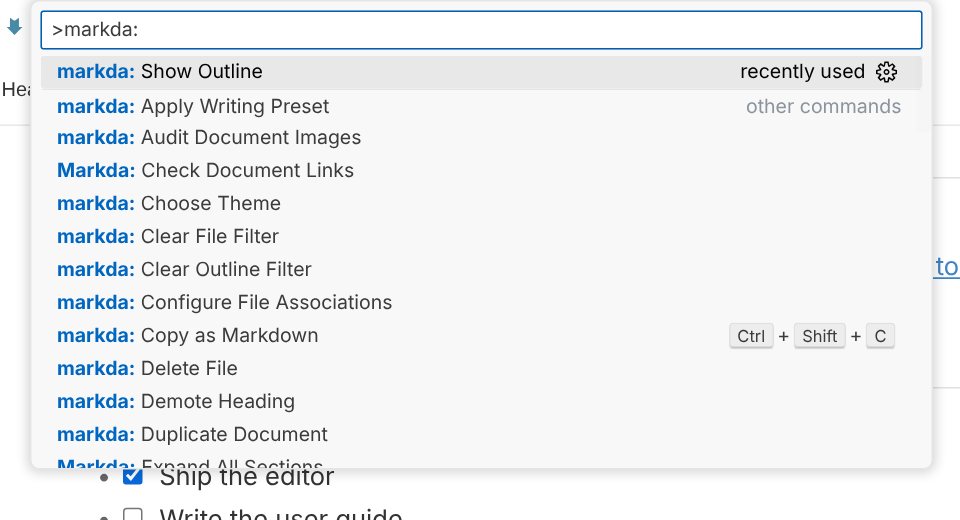
Open and manage files
| Command | Shortcut | Command ID |
|---|---|---|
| Open with markda | — | markda.open |
| Reopen with Another Editor | — | markda.reopenWith |
| Configure File Associations | — | markda.configureFileAssociations |
| New Markdown File | — | markda.newFile |
| New Document from Template | — | markda.newFromTemplate |
| Duplicate Document | — | markda.duplicate |
| Quick Open Markdown File | — | markda.quickOpen |
| Search across Markdown Files | — | markda.searchWorkspace |
| Show Files | — | markda.showFiles |
| Filter Files | — | markda.filterFiles |
| Clear File Filter | — | markda.clearFileFilter |
| Pin / Unpin File | — | markda.pinFile |
| Rename File | — | markda.renameFile |
| Delete File | — | markda.deleteFile |
| Reveal File | — | markda.revealFile |
Edit and format
| Command | Shortcut | Command ID |
|---|---|---|
| Format: Bold | Ctrl+B | markda.toggleBold |
| Format: Italic | Ctrl+I | markda.toggleItalic |
| Format: Strikethrough | Alt+Shift+5 | markda.toggleStrikethrough |
| Format: Inline Code | — | markda.toggleInlineCode |
| Format: Link | Ctrl+K | markda.insertLink |
| Format: Bulleted List | Ctrl+Shift+] | markda.toggleBulletList |
| Format: Numbered List | Ctrl+Shift+[ | markda.toggleOrderedList |
| Format: Task List | — | markda.toggleTaskList |
| Format: Block Quote | Ctrl+Shift+Q | markda.toggleBlockquote |
| Format: Code Block | Ctrl+Shift+K | markda.insertCodeBlock |
| Insert Table | Ctrl+T | markda.insertTable |
| Insert Image | — | markda.insertImage |
| Insert Math Block | Ctrl+Shift+M | markda.insertMathBlock |
| Format: Clear Formatting | Ctrl+\ | markda.clearFormatting |
| Copy as Markdown | Ctrl+Shift+C | markda.copyAsMarkdown |
| Paste as Plain Text | Ctrl+Shift+V | markda.pastePlainText |
View
| Command | Shortcut | Command ID |
|---|---|---|
| Toggle Source Code Mode | Ctrl+/ | markda.toggleSourceMode |
| Toggle Focus Mode | F8 | markda.toggleFocusMode |
| Toggle Typewriter Mode | F9 | markda.toggleTypewriterMode |
| Find in Document | — | markda.showSearch |
| Show Document Statistics | — | markda.showStatistics |
| Apply Writing Preset | — | markda.applyPreset |
| Choose Theme | — | markda.chooseTheme |
| Open Theme Folder | — | markda.openThemeFolder |
Outline and sections
| Command | Shortcut | Command ID |
|---|---|---|
| Show Outline | — | markda.showOutline |
| Filter Outline | — | markda.filterOutline |
| Clear Outline Filter | — | markda.clearOutlineFilter |
| Rename Heading | — | markda.renameHeading |
| Promote Heading | — | markda.promoteHeading |
| Demote Heading | — | markda.demoteHeading |
| Move Section Up | — | markda.moveHeadingUp |
| Move Section Down | — | markda.moveHeadingDown |
| Toggle Section Folding | — | markda.toggleHeadingFold |
| Fold All Sections | — | markda.foldAllHeadings |
| Expand All Sections | — | markda.unfoldAllHeadings |
| Focus Current Section | — | markda.focusCurrentSection |
Links and images
| Command | Shortcut | Command ID |
|---|---|---|
| Check Document Links | — | markda.checkLinks |
| Show Backlinks | — | markda.showBacklinks |
| Refresh Backlinks | — | markda.refreshBacklinks |
| Audit Document Images | — | markda.auditImages |
Export
| Command | Shortcut | Command ID |
|---|---|---|
| Export: HTML | — | markda.exportHtml |
| Export: HTML without styles | — | markda.exportHtmlBare |
| Export: PDF | — | markda.exportPdf |
| Export as Image | — | markda.exportImage |
| Export: External Target | — | markda.exportExternal |
| Export with Previous Settings | — | markda.exportWithPrevious |
18. Settings reference
Open Settings and search for markda, or add these keys to settings.json. Most settings can be set per workspace.
| Setting | Default | Description |
|---|---|---|
markda.editor.enableDefaultKeybindings | false | Use Markda's keyboard shortcuts while its editor is active. Off by default so VS Code shortcuts take priority. |
markda.editor.autoPairMarkdown | true | Automatically pair Markdown delimiters. |
markda.editor.contentWidth | 0 | Maximum editor content width in pixels. 0 fills the window. |
markda.editor.themeMode | "auto" | Editor theme: auto (follow VS Code), light, or dark. Values: auto, light, dark |
markda.editor.typewriterKeepCentered | true | Keep the current line centered while Typewriter Mode is on. |
markda.editor.previewUpdateDelay | 500 | Idle delay before refreshing the optional split preview, in milliseconds. |
markda.editor.liveTableMaxCells | 600 | Maximum number of table cells rendered as editable controls before falling back to source editing. |
markda.editor.fontFamily | "" | Document font family. Leave empty to use the selected theme. |
markda.editor.fontSize | 16 | Document font size in pixels. |
markda.editor.lineHeight | 1.6 | Document line height. |
markda.editor.paragraphSpacing | 0 | Additional spacing between Markdown source lines, in em. |
markda.markdown.math | true | Render math with KaTeX. |
markda.markdown.diagrams | true | Render Mermaid diagrams. |
markda.markdown.html | true | Render HTML written in Markdown. Output is always sanitized. |
markda.markdown.breaks | false | Treat single line breaks as line breaks in the preview and in exports. |
markda.image.folder | "${currentFileNameWithoutExt}.assets" | Folder for pasted, dropped and inserted images. ${currentFileNameWithoutExt} is replaced with the document name. |
markda.image.useRelativePath | true | Link inserted images with a relative path. |
markda.image.ensureDotSlash | false | Start relative image paths with ./ |
markda.theme.light | "paper" | Theme used in light mode: paper or one of your own themes. |
markda.theme.dark | "midnight" | Theme used in dark mode: midnight or one of your own themes. |
markda.export.defaultFolder | "ask" | ask chooses the destination each time; same saves next to the document. Values: same, ask |
markda.export.pdfBrowserPath | "" | Path to Microsoft Edge, Google Chrome, or Chromium for PDF export. Leave empty to search PATH and common system and per-user application locations. |
markda.export.pdfPaperSize | "A4" | Paper size for PDF export. Values: A4, A5, Letter, Legal |
markda.export.pdfMarginMm | 15 | Page margin in millimeters for PDF export. |
markda.export.imageWidth | 900 | Width in pixels for PNG image export. |
markda.export.imageFontSize | 18 | Font size in pixels for PNG image export. |
markda.export.targets | [] | Trusted external export commands. Variables: ${source}, ${destination}, ${documentDir}, ${documentName}, ${workspaceFolder}. |
markda.security.allowRemoteResources | "prompt" | Loading of web (http/https) resources: never, prompt or always. Values: never, prompt, always |
markda.security.allowUnsafeHtml | false | Allow editing HTML blocks directly. Content is still sanitized. |
markda.links.checkOnEdit | true | Check local file, image, and heading links after editing. Results appear in Problems. |
markda.links.updateOnRename | true | Review incoming and outgoing Markdown link updates when files or folders are renamed in a trusted workspace. |
markda.templates | [] | Custom document templates. Use {{title}} and {{date}} placeholders. |
19. Security and privacy
- No telemetry. Markda never sends usage data.
- Local rendering. Markdown, KaTeX math and Mermaid diagrams are rendered on your computer. Your documents are not sent to online services.
- Remote resources such as images on the web load according to
markda.security.allowRemoteResources:prompt(ask first, the default),alwaysornever. - HTML in Markdown is always sanitized: scripts, embedded frames, forms, event handlers and inline styles are removed. HTML blocks are read-only until you enable
markda.security.allowUnsafeHtml, which allows editing but never skips sanitization. - Workspace Trust. In untrusted workspaces, workspace-controlled image destinations and security settings are restricted, and external export commands and rename link updates are disabled.
20. Troubleshooting
Markdown files open in the text editor
Run Configure File Associations, or use Reopen Editor With… → Markda once from the tab menu.
A shortcut does nothing
Markda's shortcuts are off by default. Enable markda.editor.enableDefaultKeybindings, or bind the command yourself in Keyboard Shortcuts.
PDF export fails
Markda prints PDFs with an installed Chromium-family browser. Install Edge, Chrome or Chromium, or set markda.export.pdfBrowserPath to its executable.
A large table shows Markdown instead of cells
Tables with more cells than markda.editor.liveTableMaxCells use a lightweight source editor. Raise the limit if your computer handles it comfortably.
Remote images do not appear
Check markda.security.allowRemoteResources and approve the prompt, or set it to always for trusted documents.
Reporting a problem
Please open an issue on GitHub with your VS Code version, operating system and the steps to reproduce.
↑ Back to top